Wedding day binder template: prepare a clear handoff
Wedding day binder template: arrange confirmed contacts and schedules, flag open setup details, and give each helper the current version they need.
By The Wedding Kit by Cosmo Suite · Editorial policy
Published · 10 min read
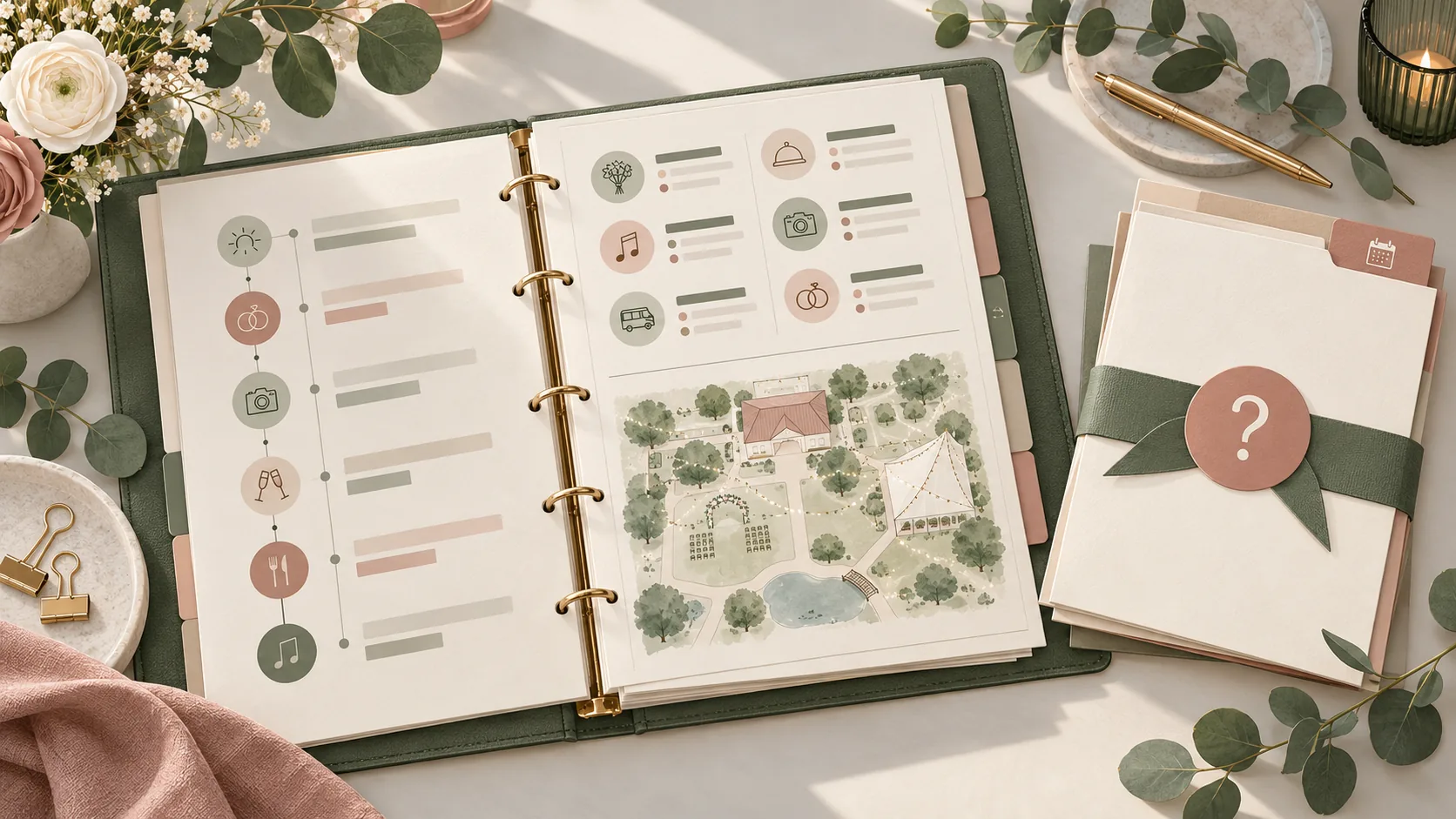
A wedding day binder template should help another person find the current instruction, contact the right owner, and see what still needs confirmation. It is a working packet for the day itself. It does not need every planning note, guest detail, or contract. Start with the jobs people will handle, then include only the pages that let them do those jobs.
The example in this guide is fictional. Names, times, and scenarios are placeholders, not vendor advice or a real wedding record. The goal is to make the handoff easy to check: who owns each task, which source confirmed the detail, and what remains open.
At a glance: build one current packet for each role. Every instruction needs an owner, a source, a status, and a recipient. Label details as confirmed, open, or unassigned so a helper can see what they may act on.
What a wedding day binder needs to do
A day-of binder needs to answer four things quickly: what is happening, where it happens, who owns the next action, and whom to contact if a detail changes. If a page cannot answer one of those questions for its reader, it may belong in the planning archive instead.
| Page or section | The helper needs to find | Keep it out of the shared copy when… |
|---|---|---|
| Current schedule | Confirmed time, location, task owner, next cue | It contains private planning notes unrelated to the task |
| Contact sheet | Who to call first and who is the backup | A number is not needed by that person |
| Setup reference | Venue-approved location and setup instruction | The layout is still a draft or has no venue confirmation |
| Open-items list | The question, who will confirm it, and by when | It is only speculation without an owner |
| Version note | Current copy date and packet owner | It could be mistaken for proof that details are confirmed |
The couple keeps source records and decisions. The point person gets the schedule and escalation route. Each task helper gets the location and next step for their own job.
A day-of handoff packet is a limited set of current instructions for the people carrying out wedding-day tasks. A planning archive holds the broader record; the packet points each helper to the details they need to act.
Use three status labels consistently. Confirmed means checked against the source responsible for the detail. Open means someone still needs to get an answer. Unassigned means no one owns the next action yet. This simple status key helps a reader separate a usable instruction from a question that still needs follow-up.
Unique insight for this guide: apply the status to each changeable field, not to a whole page. For example, the schedule may have a confirmed ceremony start while the room access time remains open.
The planning binder guide covers the larger archive. This page starts later, when you are preparing the instructions another person will use on the day.
For other posts about wedding schedules, contacts, and handoffs, browse the wedding planning articles.
Decide who will use each copy
List the people who will take action, then give each one a role and a clear boundary. “Family helper” is not a task. “Place the welcome sign at the confirmed entrance and tell the point person if the venue access time changes” is easier to understand and check.
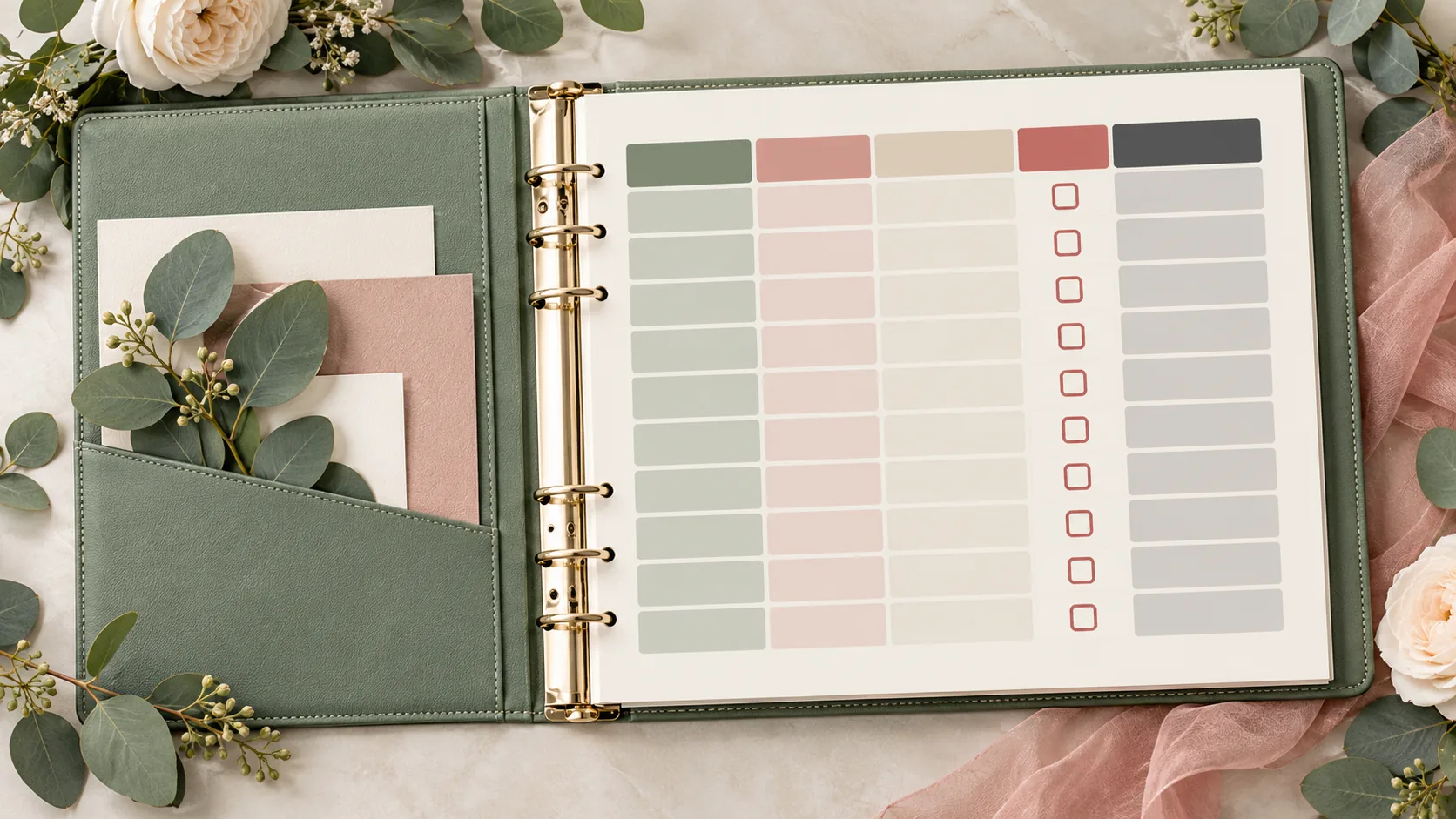
A point person often needs the whole day schedule, the main contact sheet, and a short list of open items. A decor lead may need a room reference, setup sequence, quantities, and the name of the person who approved the location. Someone giving a reading may need the cue and arrival time, not the vendor contacts or guest list.
| Copy | Example reader | Useful pages | Usually unnecessary |
|---|---|---|---|
| Master packet | Couple or designated point person | Schedule, contacts, open items, setup references | Old drafts mixed with current pages |
| Task copy | Decor or transport lead | Assigned task, location, confirmed timing, backup contact | Other helpers’ private details |
| Cue card | Ceremony participant | Arrival instruction, cue, person to ask | Full timeline and vendor records |
Use roles that fit your event and helpers. A relative is not automatically the coordinator; a binder does not replace a professional service where you need one.
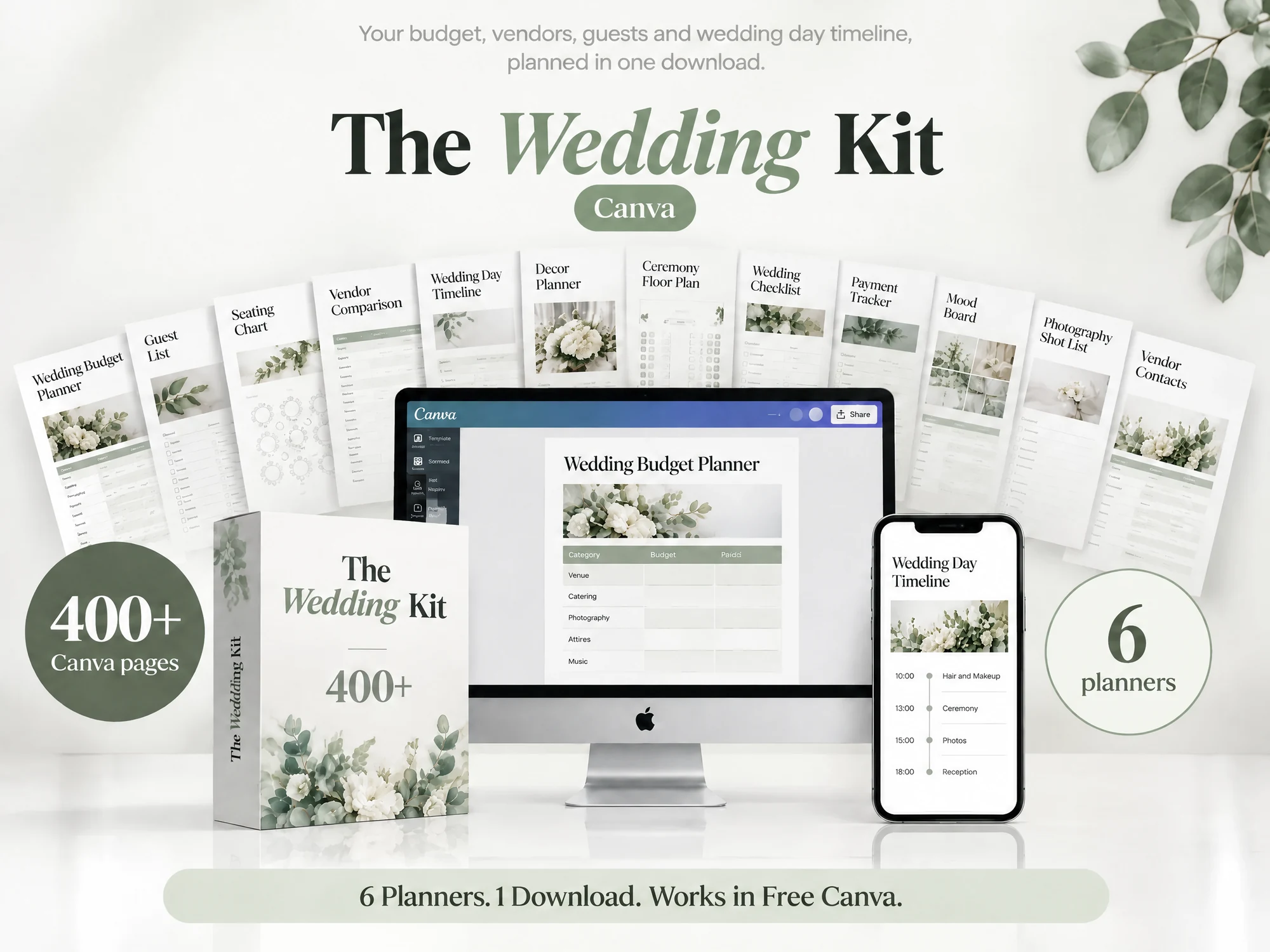
If editable pages would help you prepare the packet, The Wedding Kit's day-of binder pages include the Big Day Wedding Binder. Check the contents list to see whether its pages suit the handoff you need.
The status label belongs beside the field it describes. A schedule can be partly confirmed: the ceremony start may be settled while room access remains open. Do not mark the whole page confirmed because one row is complete. Give each changeable detail its own status and source.
Complete the cover and contact page
Put a simple control page first. It should tell the reader who owns updates, the packet’s version date, where the current copy lives, and what to do if a page conflicts with a verbal instruction. Avoid putting private guest information on a cover that many people may handle.
A contact entry works best when it distinguishes the main contact from the backup and states why the reader might call. Use the source that controls the answer. For a vendor arrival time, that could mean checking the vendor and venue rather than copying an old message into a new table.
For example, if the venue has confirmed a delivery entrance but the vendor has not confirmed an arrival window, record those two facts separately. The entrance can be marked confirmed while the time stays open.
Here is a fictional example. It deliberately leaves unresolved details visible:
| Role | Main contact | Backup | What they own | Confirmation status |
|---|---|---|---|---|
| Point person | Alex (fictional) | Morgan (fictional) | Route day-of questions | Confirm with couple before sharing |
| Decor lead | Riley (fictional) | Sam (fictional) | Place labeled decor items | Room access time still open |
| Florist contact | “Vendor contact” placeholder | Point person | Delivery update | Confirmed window must come from vendor |
Do not use these fictional labels in a real packet. Add a person only after they accept the role. If no backup is chosen, mark “backup not assigned” and give someone the task of deciding. The open field should show what happens next.
A useful contact sheet can also include a short escalation rule: call the task owner first, then the point person if there is no answer or the plan changes. Confirm that rule with the people involved. It is not a substitute for the venue’s emergency process.
Add confirmed schedules and setup references
Use one current schedule as the source for the packet. Each line should connect a time with a place, an owner, and the next cue. If a time affects venue access or vendor arrival, label it confirmed only after checking with the source responsible for it.
| Time | Task and location | Owner | Source/status | Next step |
|---|---|---|---|---|
| 10:00 | Decor access, room not yet named | Decor lead | Venue confirmation open | Point person to confirm access time and room |
| 11:30 | Florist delivery, location to confirm | Point person | Vendor window not entered | Ask vendor and venue to confirm handoff |
| 13:00 | Setup check at assigned room | Couple’s helper | Depends on both confirmations above | Use only the approved layout reference |
This fictional schedule is not a suggested timeline. A time alone tells the reader neither where to go nor who confirmed it. Keep estimates in planning notes, and mark any estimate clearly before it appears in a shared copy.
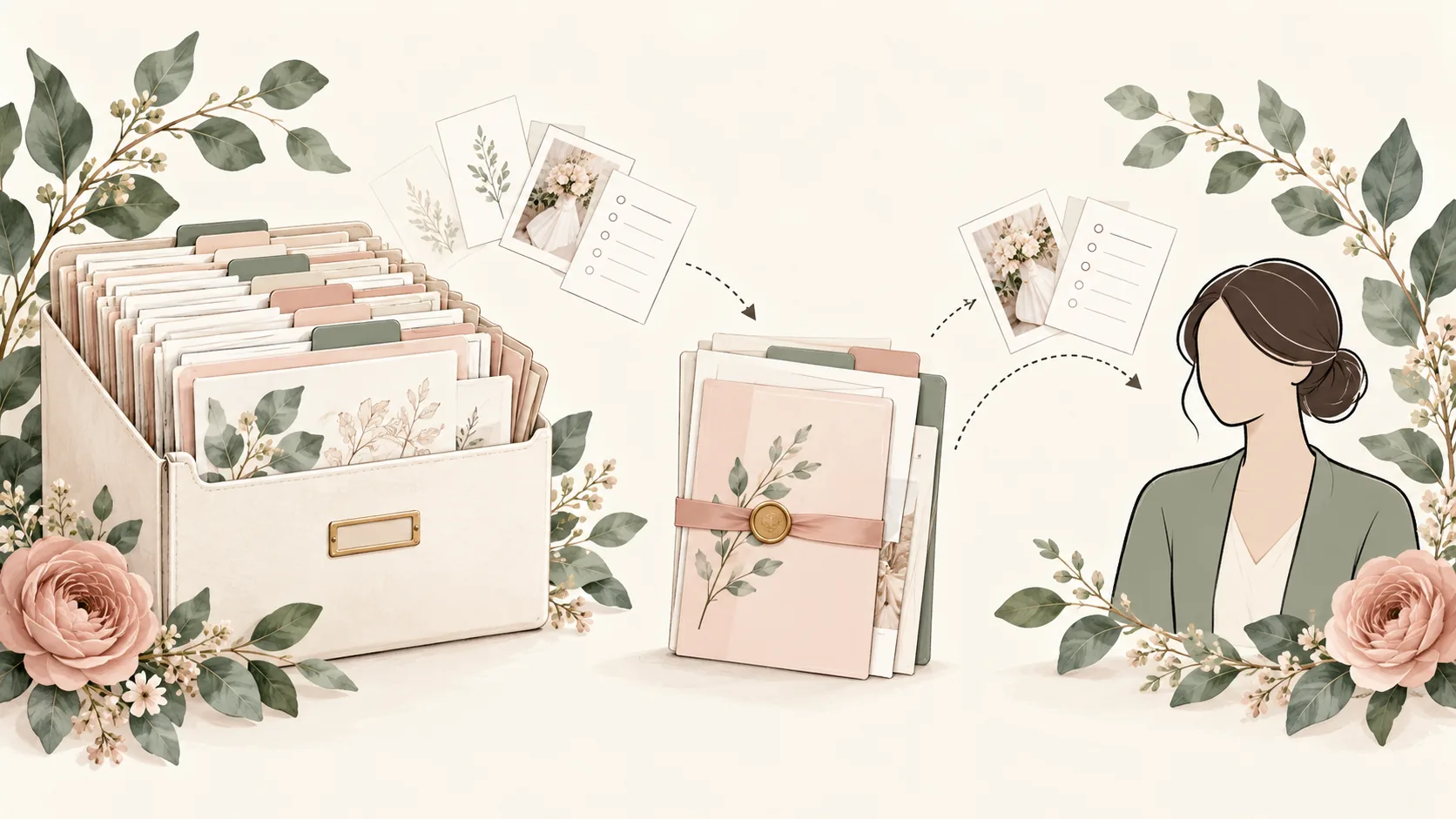
A setup reference should identify the room or area, the item or table, the instruction, and the person who approved the location. The Wedding Venue Layout Builder included in The Wedding Kit contains blank ceremony and reception layout pages. A blank layout is a planning aid; it is not a scaled plan, a capacity approval, or a substitute for the venue’s own requirements.
The Wedding Kit’s editable planning pages include the Big Day Wedding Binder and layout pages. Use the pages that suit your handoff, then confirm locations and access with the venue and vendors.
Mark unanswered questions before handover
An open item is a question that can change what another person does. Write the missing information, who will get it, and when it should be checked. Keep it beside the task it affects, so a helper does not mistake a guess for a confirmed plan.
Two fictional checks show the difference:
- Arrival conflict: The venue access time says 10:00, but the florist note says 9:30. Mark the delivery instruction “open.” The point person checks both sources and updates the schedule after they agree.
- Unowned setup: A card says “place the sign by the entrance,” but no one is named. Assign a setup owner and confirm which entrance with the venue. Until then, the packet should not imply the location is approved.
Give unresolved items a next action, not just a question mark. “Room access: open; Alex to confirm with venue by 24 October” is a fictional example. If the answer does not arrive by the stated date, the owner knows to follow up or tell the point person that the item remains unresolved.
The packet helps you keep the handoff current. The venue still confirms access and room requirements, and vendors confirm their own timings and services. Record their answers and point helpers to the person who can resolve a change.
If there is no reply by the listed date, the point person follows up or tells the couple the timing remains open.
Test the packet with its point person
Before sharing the final copy, ask the person who will carry it to complete a short walk-through. Give them a realistic task and see whether the packet leads them to the right page and the right next step. This is a check you can perform; it is not a test result to claim until you have done it.
Ask the point person to:
- Find the current schedule and tell you its version date.
- Locate the contact for a change to a vendor arrival.
- Find the setup instruction for one assigned area.
- Identify any detail still awaiting confirmation.
- Explain where an older copy should go if the plan changes.
If they cannot find a page, improve the index or page label. If they cannot tell whether a time is confirmed, add the source or status. If they find two different schedules, choose one current source and remove or mark the obsolete copies. Avoid testing with real guest contact details in a public or broadly shared setting.
Share, print, and update the right copy
Digital copies are easier to replace, while paper can be available without a device. Either way, make the current version easy to identify. Put the date and packet owner in the same place, tell each helper where their copy lives, and make one person responsible for updates.
If you build or share pages in Canva, check the current access setting before sending a link. Canva’s help page describes separate view, comment, and edit permissions, and its collaboration guidance says link access can be changed. Choose the narrowest permission that lets the recipient do their task. Do not leave an editable link open to anyone if the recipient only needs to view a page. Canva’s sharing-permissions guide explains the available permission levels.
Canva’s guide to sharing a design and collaborating by link or email explains how link access and permissions work. Recheck the controls before you send the packet because settings can change, and the recipient may need a different level of access than the person who prepared it.
Limit shared details to what each helper needs. The FTC’s business guide advises organizations to identify who can access personal information, keep only what is needed, and limit access by role. That guide is written for businesses, not couples, and it is not legal advice. The practical planning habit is still useful: review a copy before sharing and remove unrelated personal details. See the FTC guide to protecting personal information.
When a confirmed detail changes, update the source record first, then replace the relevant handoff copy. If you print a new page, collect or clearly mark the old one. Tell the point person what changed and where the current copy is. Never rely on “latest” in a filename when a date or version note can make the current packet clear.
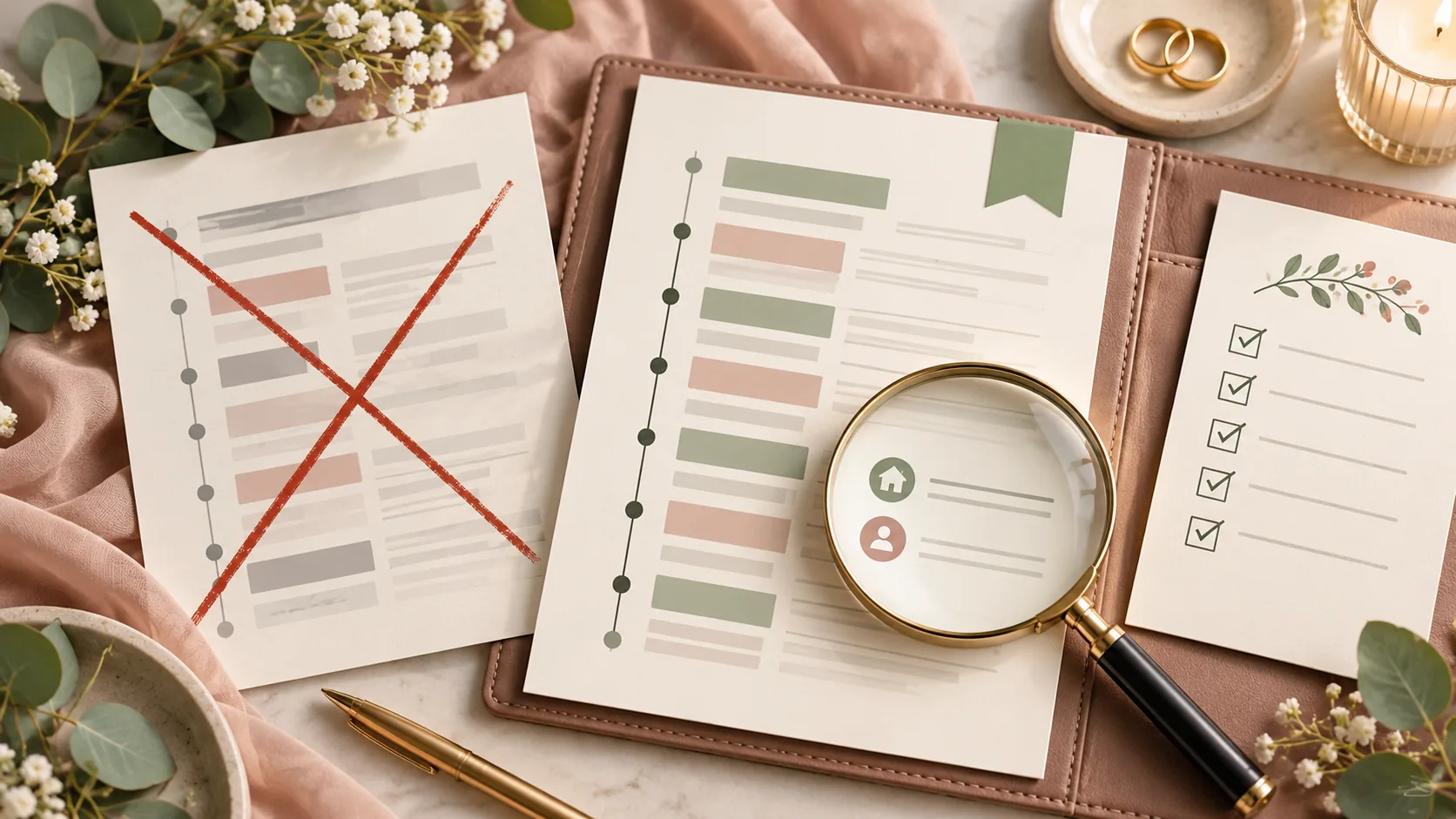
How The Wedding Kit fits
The Wedding Kit is a digital collection of editable and printable wedding planning pages. Its Big Day Wedding Binder includes day-of planning pages, while the Wedding Planning Book and Wedding Venue Layout Builder support other parts of organizing the event. Check the live contents list for the pages included in your version.
The pages help you arrange your own information. They do not confirm a vendor’s arrival, approve a venue layout, or assign a helper. Review the Wedding Kit’s included wedding planning pages and choose the sections that fit the jobs you need to hand over.
Why Trust This Article
This guide uses the current product contents and the fictional examples above; it does not claim results from a customer test or wedding. Methodology: included-page names were checked against the live contents, and Canva sharing details were checked against its help pages on 29 October 2026. The privacy note links to FTC guidance for businesses and is presented as a practical analogy, not as legal advice. The editorial policy explains how posts are prepared and corrected. Confirm changing details with the venue, vendor, or person responsible before distributing the packet.
Frequently asked questions
What should a wedding day binder include?
Include the current schedule, day-of contacts, task owners, venue-approved setup references, and instructions that helpers need. Mark anything still awaiting confirmation and name who will get the answer. Keep contracts, private guest details, and unrelated planning notes in the working archive unless a specific person needs them.
Who should get a copy of the wedding day binder?
Give each person the pages they need for an assigned task. A point person may need the full day schedule and escalation contacts. A decor helper may need setup instructions and a layout reference. A reader may need an arrival time and cue. Avoid sharing the full archive by default.
When should I finish the day-of wedding binder?
Prepare a draft after the main schedule and responsibilities take shape, then update it when the venue and vendors confirm details. Set a final review date with the person who owns the packet. If an item is still open, show the question and its owner instead of guessing.
Should I make a printed or digital wedding day binder?
Choose based on how each helper will use it. Digital pages are easier to revise and share, but access and permissions need checking. A printed copy works without a device, but older pages must be replaced when details change. Some couples keep a digital source and print a limited day-of packet.
What information should stay out of a shared wedding binder?
Leave out personal details that a helper does not need for the task. Share a relevant contact or pickup instruction with the assigned person, while keeping unrelated guest details and private records in a more limited place. Review link access and remove helpers who no longer need it.
How do I stop helpers from using an old wedding schedule?
Name one owner for updates, label the current version with its date, and tell helpers where that version lives. Replace old printouts or mark them obsolete. Ask the point person to confirm that the schedule, contact sheet, and setup instructions all refer to the same current plan.
Sources
Keep reading
Wedding planning
Wedding planning binder: build one you can hand over
Wedding planning binder: set up a useful index, keep originals organized, and prepare a smaller handoff packet with owners, confirmed times, and version dates.
· 9 min read
Wedding planning
How to Write Wedding Decor Setup Instructions
Wedding decor setup instructions need five details: location, reference, quantity, owner, and pack-away plan. Use this guide to make a clear handoff.
· 9 min read
Wedding planning
Wedding vendor contact list: fields that prevent missed calls
Wedding vendor contact list: record primary and backup contacts, arrival windows, and escalation owners so helpers know whom to call when plans change.
· 7 min read